Configure and trigger failovers
In case of an incident or an outage, Temporal will automatically fail over your Namespace from the primary to the replica. This lets in-flight Workflow Executions continue, new Workflow Executions start, and closed Workflow Executions be inspected, all with minimal interruptions or data loss. You can also manually trigger a failover based on your own monitoring or for failover testing.
Returning control from the replica to the primary is called a failback. After a Temporal-managed failover, Temporal automatically fails back to the original region once it is healthy. See Returning to the primary with failbacks for details on automatic and manual failback options.
Automatic failover
When an unexpected outage hits your Temporal Namespace, failing over to a healthy cloud region can prevent data loss and application interruptions. After a failover, in-flight Workflows continue, new Workflows start, and closed Workflows can be inspected, even while the Namespace's original region is unhealthy.
Temporal Cloud offers managed outage detection and failover to all Namespaces that use High Availability. Temporal-managed failovers, also known as "automatic failovers," keep your Temporal Cloud Namespace available without manual intervention from you. We aim to both detect the outage and complete a Temporal-managed failover in minutes from when the outage began, according to our stated Recovery Time Objective (RTO).
After a Temporal-managed failover, your Namespace will have a replica in its original region. Once the original region is healthy again, Temporal Cloud automatically performs a failback, moving your Namespace back home.
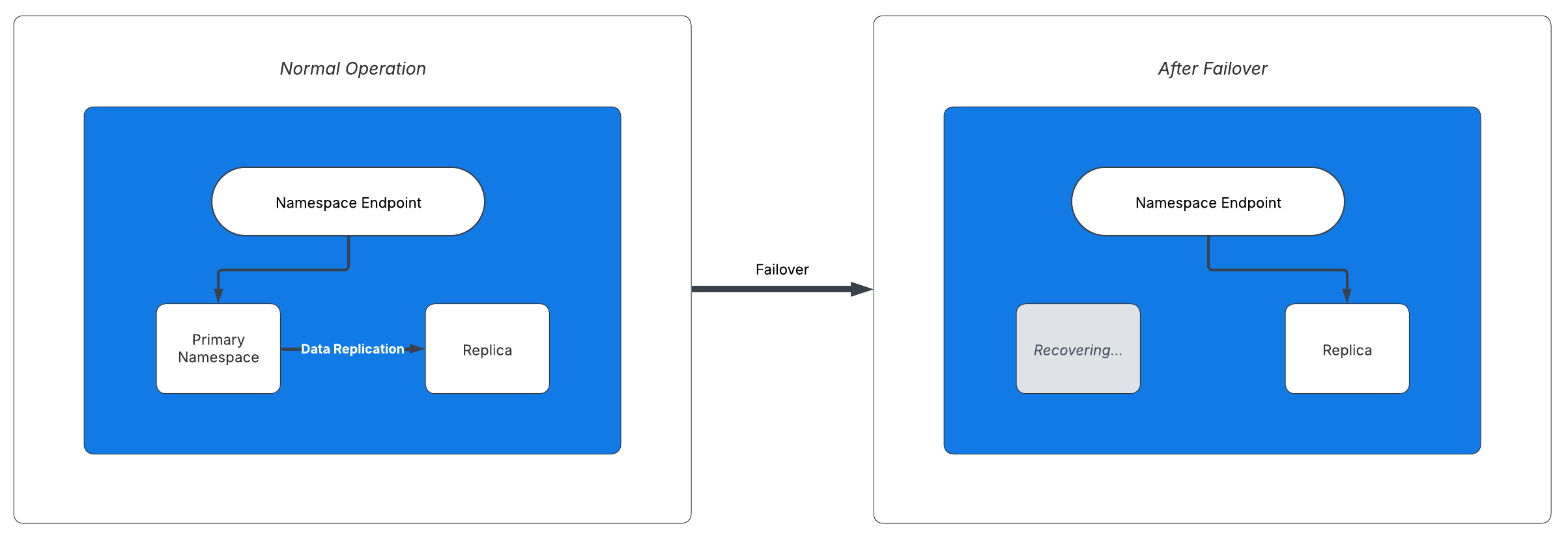
On failover, the replica becomes active and the Namespace endpoint directs access to it.
To opt out of Temporal-managed failovers and its RTO, you can disable automated failovers.
Conditions that trigger an automatic failover
While the failover operation itself usually completes in seconds, the bulk of the Recovery Time in an outage is spent detecting the disruption and deciding to trigger a failover. See How long does a failover take? for a detailed breakdown.
To achieve Temporal Cloud's Recovery Time Objective (RTO) for Namespaces that have enabled High Availability and Temporal-managed failovers (also known as "automatic failovers"), Temporal Cloud runs automated Workflows that detect outages and trigger failovers. These Workflows continuously monitor the health of Temporal Cloud in every region and every cell.
The main conditions these Workflows check are listed below. If any of these conditions are failing for too long, Temporal Cloud automatically triggers a failover on any Namespaces with High Availability that have a healthy replica. Additionally, Temporal's on-call engineers may trigger a failover at their discretion, for example, if they see early signs of a regional outage.
The following list is meant to give Temporal Cloud users a general idea of the conditions that trigger a Temporal-managed failover. This is not an exhaustive list of all cases, and it may change over time.
Example conditions monitored
- Whether Temporal Cloud's services in the cell are reachable from the control plane. Unreachable services are considered "unhealthy".
- The average latency of inbound RPC calls (excluding long-polling APIs) to Temporal services in the cell. If the average latency rises too high over a rolling time window, this condition is considered "unhealthy".
- The percentage of inbound RPC calls that returned errors related to server health. If the percentage rises too high over a rolling time window, this condition is considered "unhealthy".
- The average latency of calls from Temporal Cloud's services in the cell to its persistence layer. If the average latency rises too high over a rolling time window, this condition is considered "unhealthy".
- The percentage of recent calls to the persistence layer that returned errors related to persistence health. If the percentage rises too high over a rolling time window, this condition is considered "unhealthy".
You can test the failover of a Namespace with High Availability features by manually triggering a failover using the Web UI, the tcld CLI, or the Cloud Ops API. The Terraform provider does not support triggering failovers. In most scenarios, we recommend you let Temporal handle failovers for you.
After failover, be aware of the following points:
-
When working with Multi-region Namespaces, your CNAME may change. For example, it may switch from aws-us-west-1.region.tmprl.cloud to aws-us-east-1.region.tmprl.cloud. This change doesn't affect same-region Namespaces.
-
Your Namespace endpoint will not change. If it is
my_namespace.my_account.tmprl.cloud:7233before failover, it will bemy_namespace.my_account.tmprl.cloud:7233after failover.
The failover process
Temporal's failover process works as follows:
- During normal operation, the primary asynchronously copies operations and metadata to its replica, keeping them in sync.
- A failover is triggered, either automatically by Temporal or manually by a user.
- The replica takes over and the Namespace becomes active in the replica's cloud region. Operations continue with minimal disruption.
- If the failover was triggered by Temporal, when the original primary region recovers, Temporal triggers another failover to fail back to the Namespace's original region. (It is possible to opt-out of this automatic fail back)
- If the failover was triggered by a user, then the Namespace will continue as-is until a user triggers another failover.
A Namespace failover, which updates the "active region" field in the Namespace record, is a metadata update. This update is replicated through the Namespace metadata mechanism.
How long does a failover take?
The time to complete a failover depends on who triggered it.
User-triggered failover
A failover that you trigger yourself happens in two stages:
- The Namespace becomes active in the other region. Temporal Cloud completes this stage within 10 seconds (internal SLO). Existing Workflow Executions resume in the new active region, and new Workflow Executions can be started.
- The Namespace Endpoint re-routes to the active region. This DNS change can take a few minutes to fully propagate to all Clients and Workers. If your application has an extremely demanding Recovery Time, you can eliminate this stage by connecting through a Regional Endpoint instead of the Namespace Endpoint. Regional Endpoints require more setup, so most users should stick with the default Namespace Endpoint.
Temporal-triggered failover
A failover that Temporal triggers in response to an outage also happens in two stages:
- Detecting the outage. This is the bulk of the Recovery Time. Outages are rarely black and white; they often start as a slow degradation. Temporal continuously runs the automated health checks described in Conditions that trigger an automatic failover.
- Triggering the failover commands. Once detection completes, Temporal triggers failovers across all impacted Namespaces.
Failover scenarios
A failover on Temporal Cloud always executes in a "hybrid" fashion:
- It first attempts a "graceful" failover
- If the graceful failover does not complete after 10 seconds, then it triggers a "forced" failover.
This strategy balances consistency and availability requirements.
Graceful failover (handover)
In this mode, Temporal Cloud fully processes and drains replication Tasks. Temporal Cloud pauses traffic to the Namespace before the failover. Graceful failover prevents the loss of progress and avoids data conflicts.
During graceful failover, the Namespace may experience a brief period of unavailability. This duration can be limited by the caller and defaults to 10 seconds. If the system is unable to reach a consistent state within this timeout, the failover attempt is aborted and the Namespace reverts to its previous state. During this unavailable period:
- Existing Workflows stop progress.
- Temporal Cloud returns a "Service unavailable error". This error is retryable by the Temporal SDKs.
- State transitions will not happen and tasks are not dispatched.
- User requests like start/signal Workflow are rejected.
- Operations are paused during handover.
This mode favors consistency over availability.
Forced failover
In this mode, a Namespace immediately activates in the replica. Events not replicated due to replication lag undergo conflict resolution upon reaching the new active Namespace.
This mode prioritizes availability over consistency.
Network partitions
At any time only the primary or the replica is active. The only exception occurs in the event of a network partition, when a Network splits into separate subnetworks. Should this occur, you can promote a replica to active status. Caution: This temporarily makes both regions active. After the network partition is resolved and communication between the regions is restored, a conflict resolution algorithm determines whether the primary or replica remains active.
In traditional active/active replication, multiple nodes serve requests and accept writes simultaneously, ensuring strong synchronous data consistency. In contrast, with a Temporal Cloud Namespace with High Availability Features, only the primary accepts requests and writes at any given time. Event History Events are written to the primary first and then asynchronously replicated to the replica, ensuring that the replica remains in sync.
Conflict resolution
Namespaces with replicas rely on asynchronous event replication. Updates made to the primary may not immediately be reflected in the replica due to replication lag, particularly during failovers. In the event of a non-graceful failover, replication lag may cause a temporary setback in Workflow progress.
Namespaces that aren't replicated can be configured to provide at-most-once semantics for Activities execution when a retry policy's maximum attempts is set to 0. High Availability Namespaces provide at-least-once semantics for execution of Activities. Completed Activities may be re-dispatched in a newly active Namespace, leading to repeated executions.
When a Workflow Execution is updated in a newly active replica following a failover, events from the previously active Namespace that arrive after the failover can't be directly applied. At this point, Temporal Cloud has forked the Event History.
After failover, Temporal Cloud creates a new branch history for execution, and begins its conflict resolution process. The Temporal Service ensures that Event Histories remain valid and are replayable by SDKs post-failover or after conflict resolution. This capability is crucial for ensuring Workflow Executions continue forward without losing progress, and for maintaining consistency across replication, even during incidents that cause disruptions in replication.
Perform a manual failover
For some users, Temporal's automated health checks and failovers don't provide sufficient nuance and control. For this reason, you can manually trigger failovers based on your own custom alerts and for testing purposes. This section explains how and what to expect afterward.
Always check the replication lag before initiating a failover. A forced failover when there is a significant replication lag has a higher likelihood of rolling back Workflow progress.
When to trigger a manual failover
Most Namespaces with High Availability are well-served by Temporal-managed failovers. The cases where a manual failover is warranted are:
- Testing failover or migrating to a new region. A manual failover is the standard way to exercise your failover process with your Clients and Workers, or to move a Namespace to a different region.
- An outage that affects only your systems. If an outage is contained to your application, Workers, or other infrastructure — and Temporal Cloud is not affected — Temporal will not initiate a failover on your behalf. Detect the outage with your own monitoring and trigger a failover yourself.
- Failing over more aggressively during a regional outage. Even with Temporal-managed failovers enabled, you can still trigger a failover yourself if you detect a regional outage before Temporal does. Whichever failover happens first takes effect, and the later one is a no-op, so a user-triggered failover does not conflict with Temporal's automatic failover. This can help you achieve a lower Recovery Time when every minute matters.
Trigger the failover
You can trigger a failover manually using the Temporal Cloud Web UI, the tcld CLI, or the Cloud Ops API, depending on your preference and setup.
The Temporal Cloud Terraform provider does not support triggering failovers. You must use the Web UI, tcld CLI, or Cloud Ops API.
The following instructions outline the steps for each method:
- Web UI
- tcld
- Cloud Ops API
- Visit the Namespace page on the Temporal Cloud Web UI.
- Navigate to your Namespace details page and select the Trigger a failover option from the menu.
- Confirm your action. After confirmation, Temporal initiates the failover.
To manually trigger a failover, run the following command in your terminal:
tcld namespace failover \
    --namespace <namespace_id>.<account_id> \
    --region <target_region>
The <target_region> must be the name of a region (example: us-east-1) where the Namespace has a replica that is ready to be failed over to (replica state is Activated).
If using API key authentication with the --api-key flag, you must add it directly after the tcld command and before namespace failover.
You can trigger a failover programmatically using the Cloud Ops API. The API is available via both HTTP and gRPC.
Using HTTP
Send a POST request to the FailoverNamespaceRegion endpoint:
POST https://saas-api.tmprl.cloud/cloud/namespaces/<namespace>/failover-region
Request body:
{
  "region": "<target_region>",
  "asyncOperationId": "<optional_async_operation_id>"
}
region(required): The region code of the region to failover to. Must be a region where the Namespace has a replica inActivatedreplica state, indicating the replica is ready to be failed over to. Example:aws-us-east-1asyncOperationId(optional): A user-defined ID for tracking the async operation. If not set, the server will assign one.
Using gRPC
Use the FailoverNamespaceRegion RPC with a FailoverNamespaceRegionRequest:
message FailoverNamespaceRegionRequest {
    // The namespace to failover.
    string namespace = 1;
    // The id of the region to failover to.
    // Must be a region that the namespace is currently available in.
    string region = 2;
    // The id to use for this async operation - optional.
    string async_operation_id = 3;
}
Both methods return a FailoverNamespaceRegionResponse containing an async operation that you can use to track the failover status.
Once the failover async operation returns successfully, the Namespace will be failed over. Temporal manages retries for the failover workflow. In the rare event that an internal error prevents the failover from completing, the Temporal on-call team is automatically paged to intervene and force the failover to completion.
Temporal fails over the primary to the replica. See Returning to the primary with failbacks for details on how and when failback occurs.
Post-failover event information
After any failover, whether triggered by you or by Temporal, an event appears in both the Temporal Cloud Web UI (on the Namespace detail page) and in your audit logs.
The audit log entry for Failover uses the "operation": "FailoverNamespace" event.
After failover, the replica becomes active, taking over from the original region.
You don't need to monitor Temporal Cloud's failover response in real time. Whenever there is a failover event, Temporal Cloud notifies you via email
Returning to the primary with failbacks
After a Temporal-managed (automatic) failover, Temporal Cloud automatically fails back to the original region once it is healthy. Follow Temporal's status page for updates on the original region's health.
After a Temporal-managed failover
When Temporal triggers an automatic failover due to an outage, Temporal will also trigger an automatic failback to the original region once the region recovers. No action is required from you.
If you prefer to manage failback yourself, you have two options:
-
Opt out of automatic failback (manage failback manually): Disable Temporal-managed failovers on the Namespace. When you're ready to fail back to the original region, trigger a failover to that region and then re-enable Temporal-managed failovers.
-
Stay on the new region permanently ("fail forward"): Trigger a failover to the region that is already active. This tells Temporal that you want to treat the new region as your primary for as long as it's healthy. Temporal-managed automatic failovers remain enabled, so Temporal will still protect you if the new region has an outage.
After a user-triggered failover
If you triggered a failover yourself during an outage (instead of relying on a Temporal-managed failover), Temporal will not automatically fail back for you. You must trigger a failover back to the original region when it is healthy. Monitor Temporal's status page for updates on region health.
Automatic failback is only available after Temporal-managed (automatic) failovers.
How to check whether your Namespace will be automatically failed back
If you're not sure whether your Namespace will be automatically failed back, check the list of failovers in the Temporal Cloud Web UI on your Namespace's detail page:
- If the most recent failover was Temporal-triggered, then Temporal will automatically fail back the Namespace when the original region is healthy.
- If the most recent failover was user-triggered, then the Namespace will not be automatically failed back. You must trigger the failback yourself.
Disabling Temporal-initiated failovers
When you add a replica to a Namespace, in the event of an incident or an outage Temporal Cloud automatically fails over the Namespace to its replica. This is the recommended and default option.
However if you prefer to disable Temporal-initiated failovers and handle your own failovers, you can do so by following these instructions:
- Web UI
- tcld
- Navigate to the Namespace detail page in Temporal Cloud.
- Choose the "Disable Temporal-initiated failovers" option.
To disable Temporal-initiated failovers, run the following command in your terminal:
tcld namespace update-high-availability \
    --namespace <namespace_id>.<account_id> \
    --disable-auto-failover=true
If using API key authentication with the --api-key flag, you must add it directly after the tcld command and before namespace update-high-availability
Temporal Cloud disables its health-check initiated failovers.
To restore the default behavior, unselect the option in the WebUI or change true to false in the CLI command.
Best practices: Workers and failovers
Enabling High Availability for Namespaces doesn't require specific Worker configuration. The process is invisible to the Workers. When a Namespace fails over to the replica, the DNS redirection orchestrated by Temporal ensures that your existing Workers continue to poll the Namespace without interruption.
When a Namespace fails over to a replica in a different region, Workers will be communicating cross-region.
- If your application can’t tolerate this latency, deploy a second set of Workers in the replica's region or opt for a replica in the same region:
- In the case of a complete regional outage, Workers in the original region may fail alongside the original Namespace. To keep Workflows moving during this level of outage, deploy a second set of Workers to the secondary region.
Temporal Cloud enforces a maximum connection lifetime of 5 minutes. This offers your Workers an opportunity to re-resolve the DNS.
Best practices: scheduled failover testing
Microservices and external dependencies will fail at some point. Testing failovers ensures your app can handle these failures effectively. Temporal recommends regular and periodic failover testing for mission-critical applications in production. By testing in non-emergency conditions, you verify that your app continues to function, even when parts of the infrastructure fail.